
RT Module
The RT module enables log acquisition from Windows systems, including machines that are not domain-joined and those requiring Real-Time registration.
The RT client must be installed on the machines to be monitored using a dedicated setup package. The only prerequisite is the presence of .NET Core 9.0.
For proper operation, the TCP port configured in the “Plugin” section must also be enabled:

The default communication port is TCP 22422.
Server Side
Activation of the server component and configuration of the dedicated port are required.
Once completed, the BlogService service must be restarted to apply the changes correctly.
ATTENTION:
It must also be verified that any firewalls, whether Windows-based or third-party, allow communication through the configured port.
Client Side
After activating the RT licence, download the installation setup:
The installation process follows a procedure similar to that of BusinessLog but is significantly faster.
Once installation is complete, execute the file "RTConfig.exe", which serves as the RT client configuration tool.
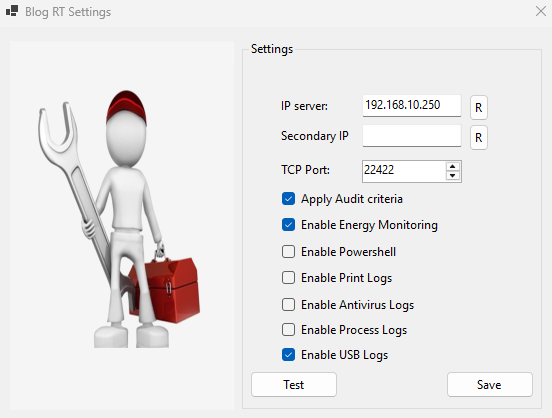
Within the "RTConfig.exe" configurator, it is necessary to specify the following parameters:
-
IP address of the BusinessLog host machine
-
Optional secondary IP address, useful in VPN or alternative connectivity scenarios
-
Communication port to be used (default: 22422)
-
Automatic audit policy application on the machine
-
Active plugins: for some, a license is required that must be activated on the server side.
- Enable Energy Monitoring (with "Energy" license): allows you to track energy consumption
- Enable PowerShell: turn on logging of PowerShell commands in the logs
- Enable Print Log (with 'Print' license): enables logging of prints
-Enable Antivirus Log: enable native logging for Microsoft Defender antivirus
-Enable Process Log (with 'Tracking' license): activates the logging of started and closed processes
-Enable USB Log (with 'Usb' license): activates the recording of file movements to removable devices.
After completing the configuration, run a test and then click [Save].
Verify that the BlogServiceRT service is running and start it manually if necessary.
The service runs in the background. The connector begins by collecting historical logs present on the machine and subsequently sends each new local event to the RT server for registration in BusinessLog.
The RT module also collects the local machine’s Software and Hardware Inventory.
-
Dual IP Management and Command-Line Parameters
The updated version of RTConfig allows configuration of both a primary IP address (internal network) and a secondary IP address (for example, a public NAT address). This is particularly suitable for workstations operating both on-site and remotely, such as in smart working or branch office scenarios.
The "RTTransfer" module initially attempts connection using the primary IP. If unsuccessful, it automatically retries using the secondary IP. All attempts are recorded in the logs.
Next to the IP fields, an “R” button allows hostname resolution: for example, entering Server1 and selecting “R” prompts the system to resolve the corresponding IP address (for example 192.168.10.1).
If the field already contains a valid IP address, a confirmation message is displayed.
MSI Deployment for BlogRT
An .msi version of the setup package is available for centralised deployment through GPO or other deployment tools.
After downloading the installation package, it can be added to distribution policies.
Individual workstations can be configured remotely using the following command:
C:\Program Files (x86)\Enterprise\BusinessLogRT\rtconfig.exe /ip=[IP] /port=[PORTA] /script=[True/False]
You can add the tags corresponding to the required qualifications:
/ip2= [secondary IP]
/energy= (true o false)
/powershell=(true o false)
/print=(true o false)
/antivirus=(true o false)
/tracking=(true o false)
/usb=(true o false)
Replace the parameters with the required values.
For example:
C:\Program Files (x86)\Enterprise\BusinessLogRT\rtconfig.exe /ip=192.168.1.1 /port=22422 /script=true
-
Dual IP Management and Command-Line Parameters
It is possible to configure an RT workstation to receive logs from external sources. Examples include a server hosted in a data centre or a VM set up in a cloud service, workstations located outside the company (e.g. a branch office) with limited VPN resources, or portable devices assigned to agents or employees working remotely.
For these cases, the guidelines are:
-
RT clients must be configured with the public IP address of the company network (to which the firewall responds); for laptops, we recommend also configuring the secondary IP address with the internal IP address of the BusinessLog server, in case the user returns to the internal network.
-
The company firewall must be configured with port forwarding for TCP port 22422 (or another port if configured differently), pointing to the internal IP address of the BusinessLog server.
-
Check that the laptops do not have any firewall blocks on that port; if necessary, implement a targeted policy.
The aim is to allow an external device (e.g. a laptop with RT installed outside the network) to send syslog traffic to the customer’s public IP address on TCP port 22422.
On the customer’s firewall, you must:
-
Create a NAT / Virtual IP rule (or equivalent)
-
Destination public IP (e.g. 5.3.128.55).
-
External TCP port 22422.
-
Routing to the private IP of the Business Log server.
-
Internal TCP port 22422.
Create a firewall policy that allows traffic:
-
From WAN to LAN.
-
TCP protocol 22422.
-
Destination: Business Log server IP (e.g. 192.168.x.x).
Check that:
-
The service on the server is actually listening on TCP 22422.
-
There are no blocks on the server’s local firewall.
-
Any IPS / security policies do not intercept the traffic.
The concept is identical on Fortinet, Sophos, pfSense or any other firewall: you need to forward port 22422 to the internal server and a policy that allows the traffic.